
Team & permissions
Your team, with the right access.
Invite the people who need it, give them a role, and let the server decide what they can do. bizzMate has three roles, record ownership, and visibility settings that are enforced rather than suggested.
No credit card required · Set up in minutes · AUD pricing
Why it matters
What team & permissions is for
Permissions in a small business are not about secrecy. They are about not having your entire customer database one accidental click from being deleted.
bizzMate keeps the model small enough to understand — owner, admin, member — and enforces it where it counts, on the API.
At a glance
- Owner, admin and member roles
- Invite by email, with an expiring invitation link
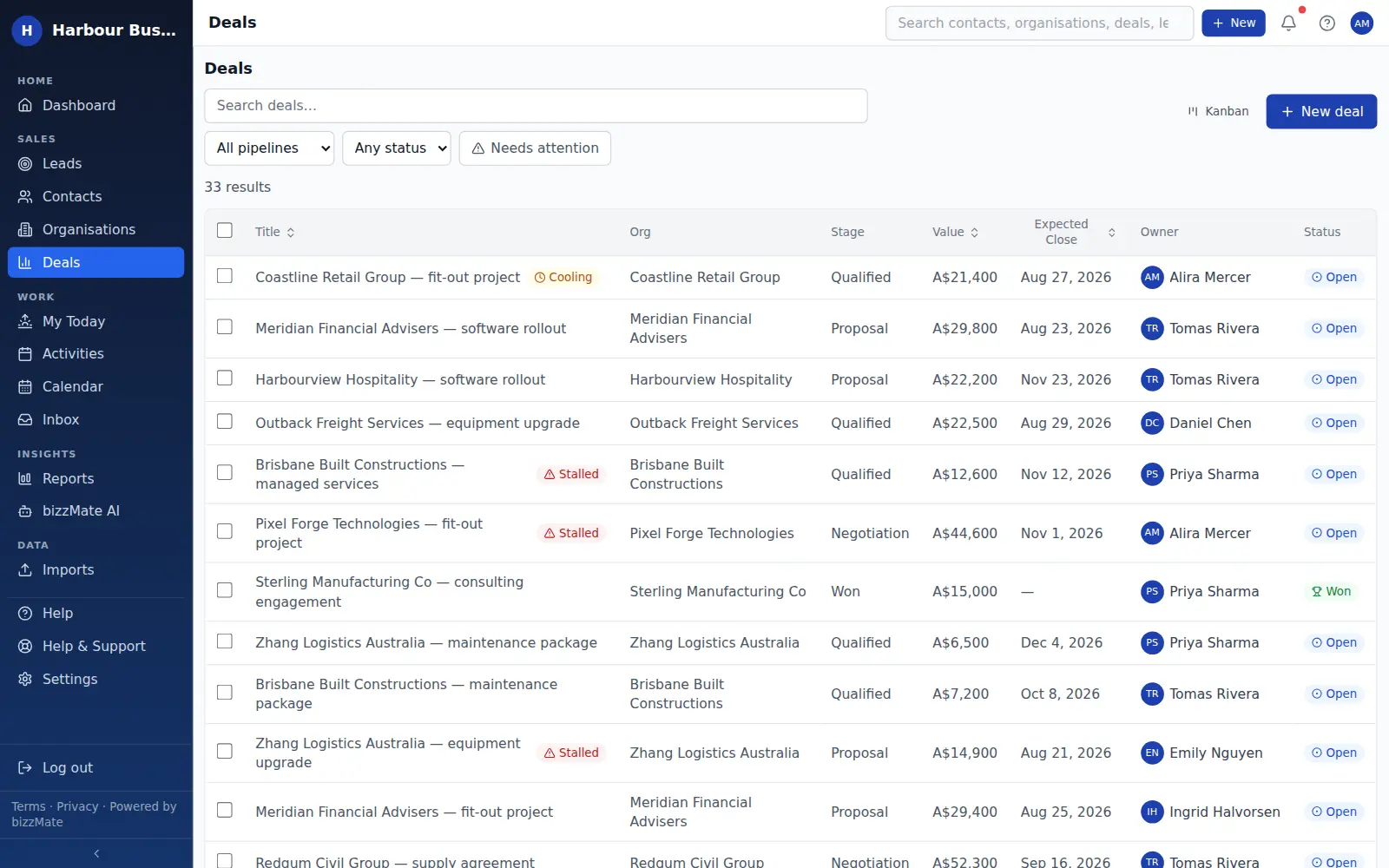
- Record ownership for contacts, organisations, deals and activities
- Public or private visibility per record type
- An audit log of workspace activity for owners and admins
- Deactivate a user without losing their history
Capabilities
What it actually does
Every item below is a shipped part of bizzMate today — not a roadmap entry.
Three roles, clearly bounded
Members work the CRM. Admins additionally manage users, workspace settings, billing visibility, exports and the audit log. Only the owner can delete or transfer the workspace.
Enforced on the server
The interface hides what you cannot use, but that is cosmetic. Every permission is checked by the API, so a hidden button is not the security control.
Ownership on every record
Contacts, organisations, deals and activities each have an owner. Admins can reassign records when someone changes role or leaves, without losing history.
Visibility you control
Owners and admins can set each record type to public — visible to the whole workspace — or private, where only the owner and admins can see it.
An audit log
Owners and admins can review a log of significant workspace activity, which matters the first time somebody asks who changed something.
Sign-in that suits your business
People can sign in with Google, with Microsoft, or with an email address and password.
How it works
How it fits a working day
Step 1: Invite the people who need access
Send an invitation by email and choose their role. They set their own password or sign in with Google or Microsoft.
Step 2: Set ownership and visibility
Decide whether records are visible workspace-wide or only to their owner, and make sure every record has an owner.
Step 3: Adjust as the team changes
Change a role, reassign a book of business, or deactivate someone. The history they created stays with the records.
Frequently asked questions
- How many people can use my workspace?
- Solo is a single user and Pro supports up to 25. Business removes the plan-level cap on how many people you can add, but each active user is still billed at the Business per-user rate. bizzMate is priced per user, per month, so you only pay for the people who actually use it.
- What happens when someone leaves?
- Deactivate their account and reassign their records to whoever is picking up the relationships. Their logged activity stays on the timeline so the history remains complete.
- Can a member see everything in the workspace?
- That is your choice. With public visibility they can see the workspace's records; with private visibility they see their own and admins see everything. Either way, reporting scope and administrative actions stay limited to their role.
- Is there single sign-on?
- You can sign in with a Google or Microsoft account. Enterprise SSO with your own identity provider is not part of the product today.
Explore related capabilities
Try team & permissions on your own customers.
Start a free 15-day trial of bizzMate and set your workspace up in an afternoon. No credit card required.
No credit card required.