
Imports
Bring your spreadsheet across.
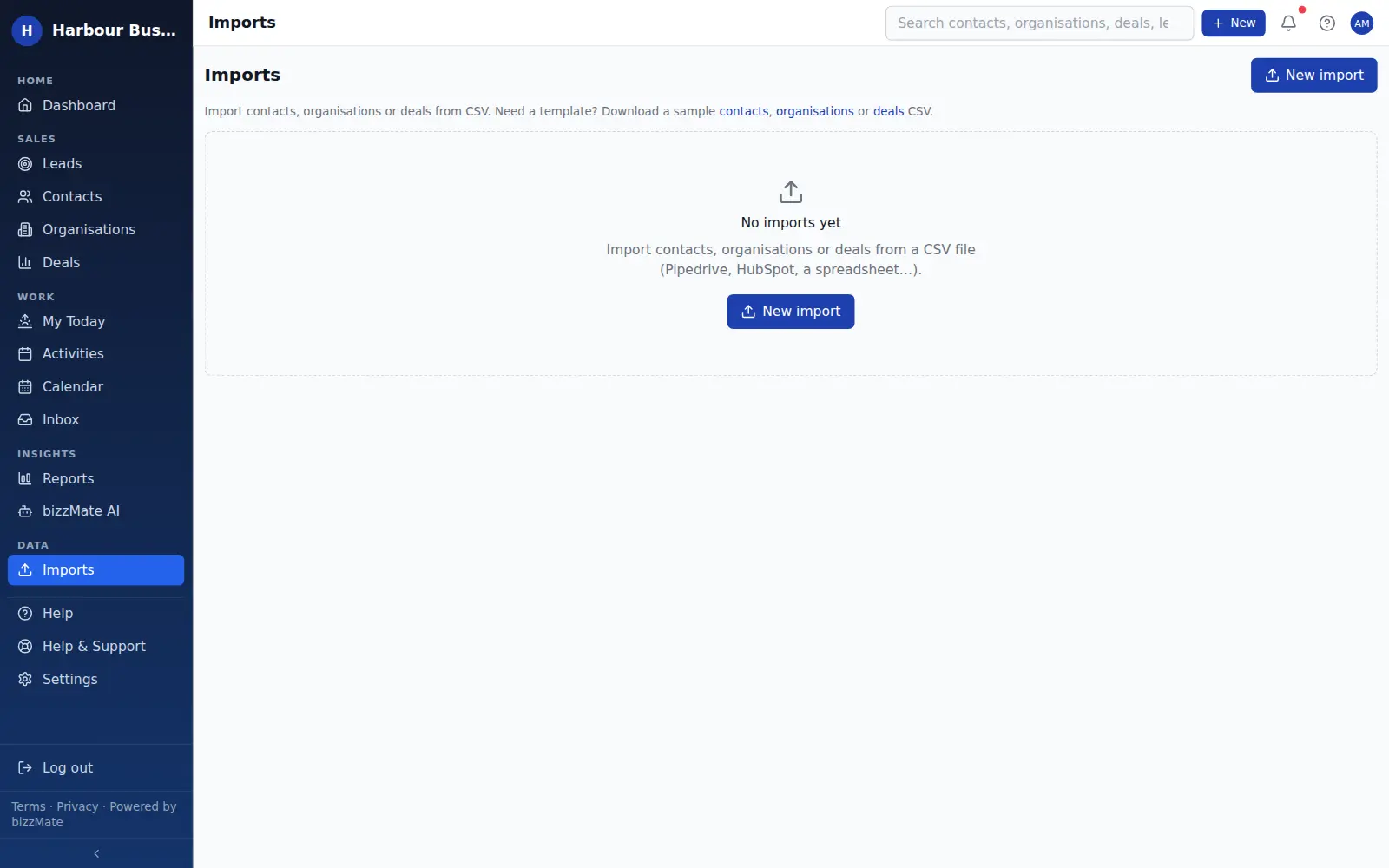
Upload a CSV, map your columns onto CRM fields, look at exactly what will be created, and only then commit. Nothing is written to your workspace until you say so.
No credit card required · Set up in minutes · AUD pricing
Why it matters
What imports is for
The reason most businesses stay on a spreadsheet is not that they love the spreadsheet. It is that moving off it feels risky.
bizzMate's import is built to remove that risk: you see the mapping, you see the preview, and you can walk away at any point before committing.
At a glance
- CSV upload from any spreadsheet tool
- Column mapping onto CRM fields
- A preview of what will be created before anything is written
- A result summary showing what succeeded and what did not
- Import history, so you can see what came in and when
- Data export whenever you want it back out
Capabilities
What it actually does
Every item below is a shipped part of bizzMate today — not a roadmap entry.
Map your columns, not ours
Your spreadsheet's headings almost certainly do not match a CRM's field names. The mapping step exists so you do not have to rewrite the file first.
Preview before commit
The import is staged. You see the rows that will be created and the ones that will not, and the commit is a separate, deliberate action.
A record of every import
Imports are listed with their status and result, so if a number looks wrong next month you can see what came in and when.
Sample data to practise on
New workspaces can load realistic sample data to explore the product, then clear it out before real data goes in.
Export is a right, not a feature
Owners and admins can export workspace data at any time. Your customer list is yours.
How it works
How it fits a working day
Step 1: Export a CSV from wherever you are today
Excel, Google Sheets, another CRM — anything that produces a CSV works.
Step 2: Upload and map
Match your columns to bizzMate fields. The mapping is the whole job, and it takes a couple of minutes.
Step 3: Preview, then commit
Check the preview, commit the import, and see the result summary. If something is wrong, fix the file and run it again.
Frequently asked questions
- What file format does bizzMate import?
- CSV. Every spreadsheet tool and most CRMs can export one, which makes it the format least likely to block you.
- What happens if a row is invalid?
- It is reported in the result rather than silently dropped, so you can correct the file and re-import just those rows.
- Can I get my data back out?
- Yes. Workspace owners and admins can export workspace data at any time, and lists can be exported to CSV from the reports workspace.
Explore related capabilities
- Contact managementPeople, roles, ownership and when you last actually spoke.
- Organisation managementCompany records holding every person and every open deal.
- Team & permissionsOwner, admin and member roles, enforced by the server.
- Security & privacyHow workspace isolation, access control and backups actually work.
Try imports on your own customers.
Start a free 15-day trial of bizzMate and set your workspace up in an afternoon. No credit card required.
No credit card required.